Loading...

Copyright © David J. Allen
Loading...
Copyright © David J. Allen
If you're like me a use Arch Linux (btw), then you know that upgrading your system (sudo pacman -Syu) can sometimes be a real PITA. I certainly don't like playing Russian roulette with upgrades that may render my system completely useless and require me to have to troubleshoot. No, poor devs like me that have work to do prefer to use quick and dirty methods to get back up and running and back to business in a matter of minutes. Enter btrfs and timeshift.
Anyone that's been using Linux for a while probably already know about both of these (especially if you're reading this blog post). The important thing to know is that btrfs has a built-in snapshot overlay features and timeshift is a pretty sweet frontend to use it. Plus, you can install the timeshift-autosnap package from the AUR to make creating snapshots automated and seamless without having to do so manually.
Fortunately, getting everything set up is a straight-forward process assuming you have a partition that uses btrfs on Arch Linux. Just install both packages mentioned above, then try updating your system. Keep in mind that timeshift does require sudo since it can roll back system files.
yay -S timeshift timeshift-autosnap --noconfirm
Open the timeshift UI, and follow the prompts until you're finished. You should notice some extra output now whenever you do a system update before anything gets (re)installed. After the update is complete, check timeshift again and you should see an entry with the comment {timeshift-autosnap} in it.
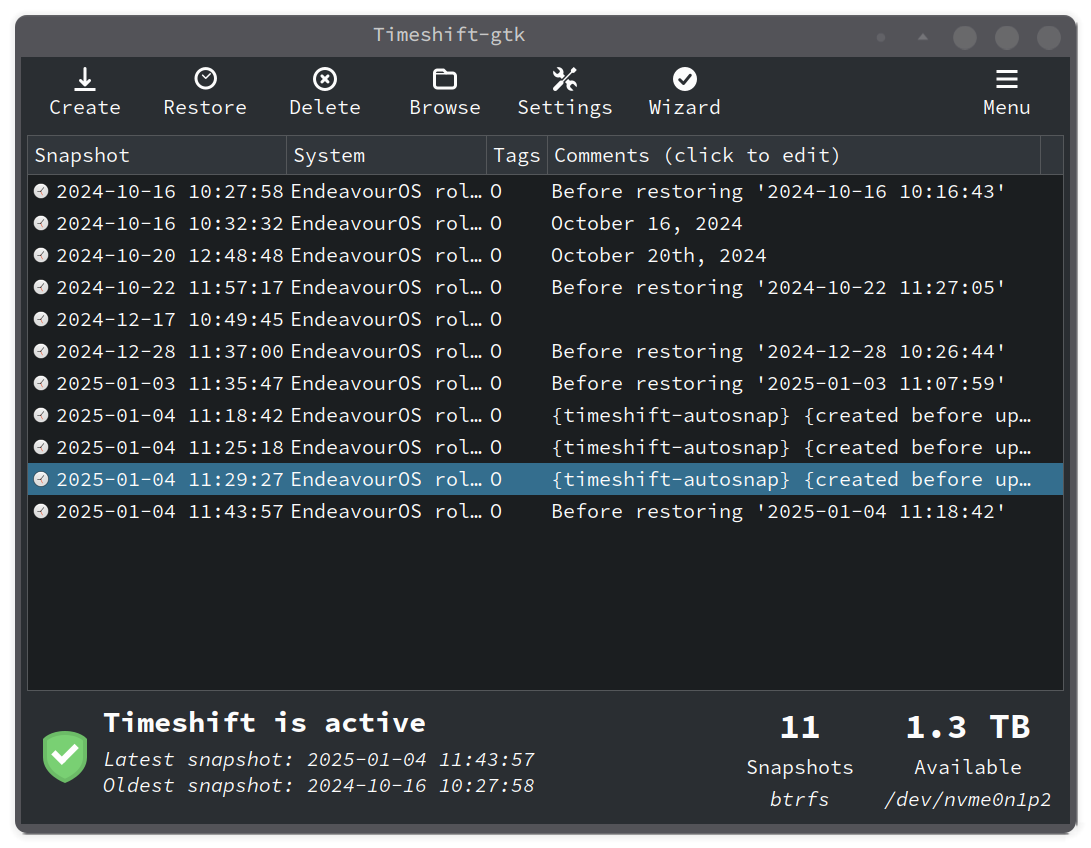
And that pretty much it! If your systems starts acting weird after an upgrade, you can always do a restore, restart your computer, and revert your computer back to your pre-update state. Now you can always confidently do updates without too much worry about breaking your system.
[!TIP] The
timeshiftpackage also comes with a CLI tool in case something goes wrong with a graphics driver update. Trytimeshift --helpfor more info on how to use it.